
Overview
ShareX is the department-approved application for capturing and uploading visual evidence. Officers should use ShareX when documenting:- Radar readings
- Traffic-camera results
- CCTV footage
- Vehicle or suspect information
- Evidence found during an investigation
- MDT records requiring visual documentation
- Other relevant on-screen information
Download ShareX
Download ShareX from the official website.
Installation and Configuration
1
Download and Install ShareX
Download ShareX from the official website:https://getsharex.com/Install the application and open it after installation is complete.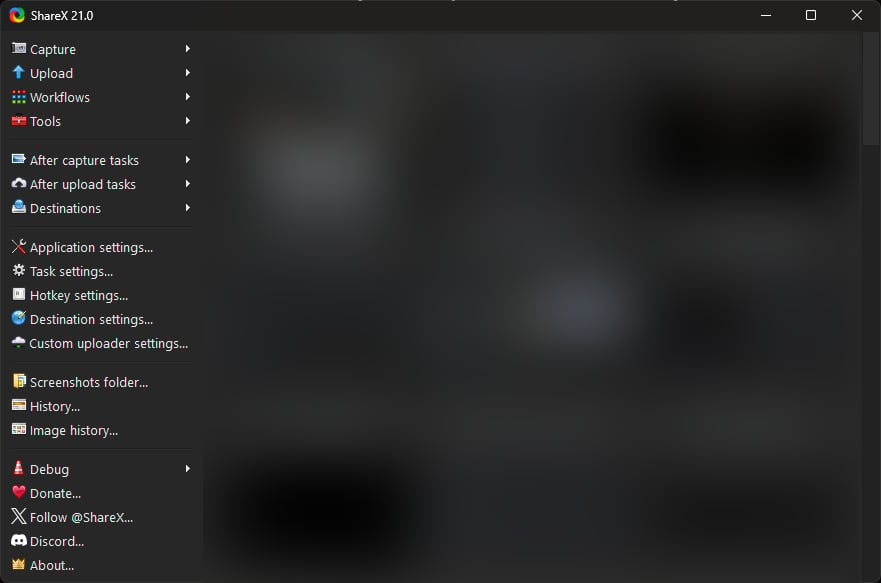
2
Open the Custom Uploader Settings
From the ShareX main window, navigate to:Destinations → Custom Uploader Settings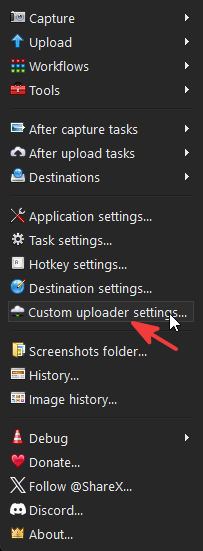
3
Create the FiveManage Uploader
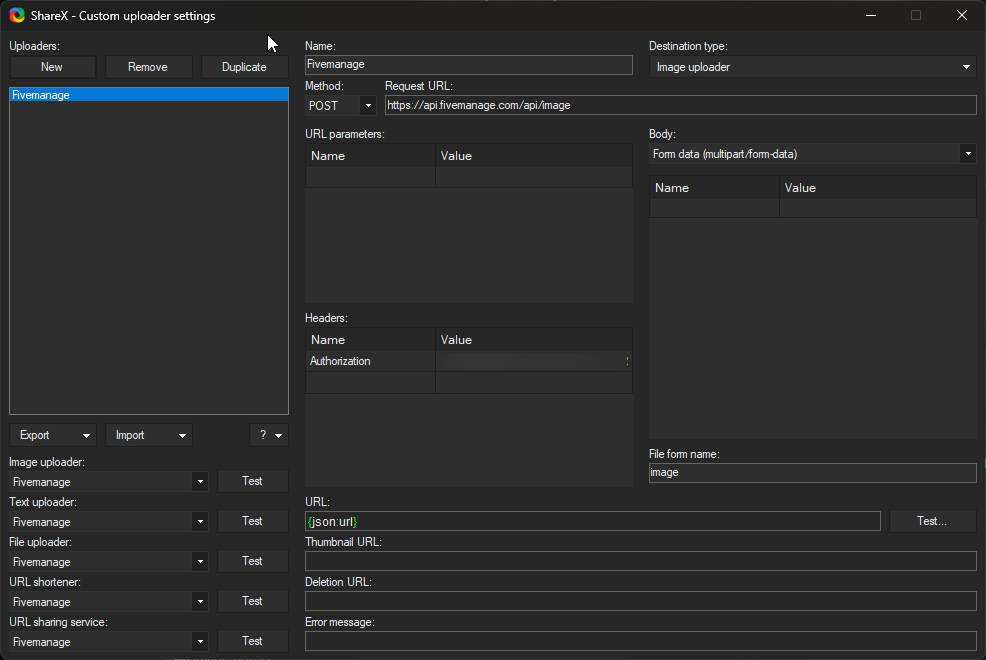
Select New and enter the following configuration:
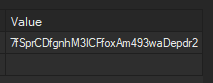
The authorization token is intentionally not included in this handbook. Contact LSPD Command through the approved private channel to receive the current token.
4
Verify Each Configuration Field
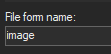
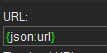
Compare your configuration with the examples below.
- Name
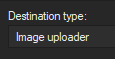
- Uploader Type
- Request URL
- File Form
- Response URL
Set the uploader name to:

5
Test the Uploader
Select Test next to the Image Uploader configuration.ShareX will ask you to select an image. Choose a non-sensitive test image.A successful test should return a FiveManage link similar to:Open the returned link and confirm that the correct image loads.
6
Select the Custom Image Uploader
Return to the ShareX main window and navigate to:Destinations → Image Uploader → Custom Image Uploader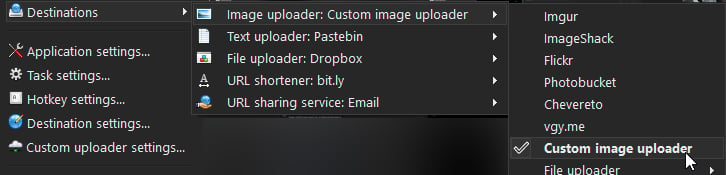
7
Configure Automatic Upload Tasks
Open the ShareX task menus and enable:After Capture Tasks
Upload image to host
Copy URL to clipboard
Selecting Custom Image Uploader does not automatically enable uploads. The
Upload image to host after-capture task must also be enabled.Capturing Evidence
To capture a selected area:- Open ShareX.
- Select Capture → Region, or use your configured region-capture hotkey.
- Select the relevant portion of the screen.
- Review the image for unrelated or sensitive information.
- Complete the capture.
- Wait for ShareX to upload the image.
- Paste the copied FiveManage link into the appropriate MDT report, evidence entry, or case file.
Evidence Standards
ShareX must only be used for legitimate department or investigative purposes. When capturing evidence:- Include enough surrounding information to establish context.
- Make sure names, plates, radar readings, or other relevant details are readable.
- Do not intentionally crop out information that changes the meaning of the evidence.
- Do not edit an image in a way that misrepresents what occurred.
- Redact unrelated personal or out-of-character information before uploading.
- Do not upload memes, personal images, or unrelated server content.
- Attach the resulting link to the correct report or evidence entry.
- Preserve the original capture when requested by a supervisor or the Department of Justice.
Troubleshooting
If the configuration appears correct but uploads continue to fail, take a screenshot of the error message without displaying the authorization token and contact a supervisor.