
.png?fit=max&auto=format&n=iamnTLykGbRSE8bz&q=85&s=f70c677c5558786dc47935b06b72d6a4)
Police Utilities
The Police Utilities app is a centralized collection of commonly used department tools built directly into the police laptop. Previously, these functions were spread across disconnected commands and menus. The new application places them into one consistent interface, making department operations easier to understand and reducing unnecessary command usage.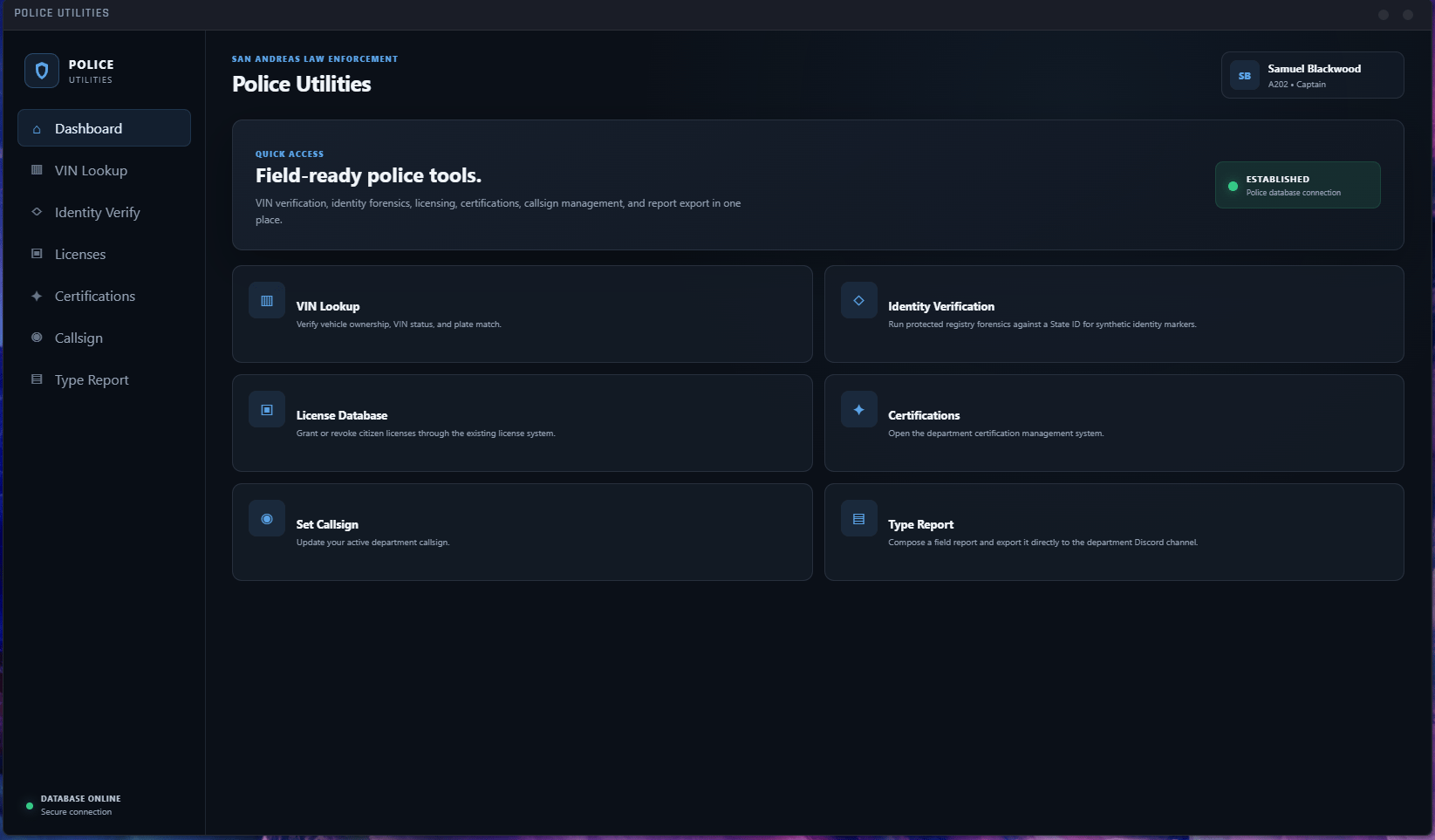
Available utilities and actions may depend on the officer’s rank, certifications, assignment, or department permissions.
Available Utilities
VIN Lookup
VIN Lookup
The VIN Lookup tool allows officers to inspect a vehicle’s identification number and compare it against the vehicle’s registered information.The lookup may help identify:
- Vehicles displaying an incorrect license plate
- Stolen vehicles using cloned or switched plates
- Vehicles with altered identification
- Boosted vehicles with scratched VINs
- Registration information that does not match the physical vehicle
How to Use It
- Open the VIN Lookup utility.
- Inspect or enter the vehicle’s identification information.
- Allow the system to compare the VIN with state registration records.
- Review whether the VIN and displayed license plate match.
- Document any discrepancy in the appropriate incident or investigative report.
Identity Verification
Identity Verification
Identity Verification performs a forensic database check against the citizen profile presented to an officer.This tool is intended to help determine whether an identity:
- Exists within legitimate state records
- Matches an authentic MDT citizen profile
- Contains inconsistent or fraudulent information
- Has been created as a false identity
- Requires additional investigation
How to Use It
- Open Identity Verification.
- Enter the person’s Citizen ID or State ID.
- Submit the information for analysis.
- Review the returned verification result.
- Document any flagged identity in the associated report.
Identity Verification checks the validity of the profile itself. It does not automatically determine whether the person presenting that identity is its lawful owner.
License Management
License Management
License Management allows authorized personnel to grant or revoke state-issued licenses.Depending on department configuration, manageable licenses may include:
- Driver licenses
- Commercial driving licenses
- Weapon licenses
- Pilot licenses
- Other state-issued authorizations
Granting a License
A license should only be granted when the citizen has:- Completed the required training or examination
- Paid any applicable fees
- Met the legal eligibility requirements
- Received approval from the appropriate authority
Revoking a License
A license may be revoked when authorized by:- Applicable criminal charges
- Court order
- Department policy
- License suspension or revocation procedures
- Another approved legal action
Officer Certifications
Officer Certifications
The Certifications utility allows authorized supervisors and instructors to manage qualifications assigned to individual officers.Certifications may unlock:
- Specialized equipment
- Department weapons
- Vehicles or aircraft
- Specialized divisions
- Additional laptop utilities
- Restricted operational capabilities
Managing a Certification
- Open the Certifications utility.
- Enter or select the officer being managed.
- Confirm the officer’s identity.
- Select the applicable certification.
- Grant or revoke the certification.
- Confirm that the change was applied correctly.
Receiving a certification does not automatically place an officer into a specialized division. Division assignments and equipment authorization remain subject to department policy.
Callsign Management
Callsign Management
Callsign Management allows officers to maintain the callsign displayed throughout department systems.An officer’s callsign may appear within:
- Dispatch
- The department roster
- MDT records
- Unit assignments
- Active emergency calls
- Other police applications
Selecting a Callsign
- Open the Callsign utility.
- Enter the callsign assigned to you.
- Confirm that it follows the department callsign structure.
- Submit the change.
- Verify that the correct callsign appears in dispatch and department systems.
Quick Report
Quick Report
The Quick Report utility allows officers to record short notes and reports without creating a complete MDT incident.Submitted reports are exported to the department’s Discord archive for future reference.Quick Reports are useful for:
- Field observations
- Intelligence notes
- Suspicious activity
- Brief citizen contacts
- Vehicle information
- Training notes
- Minor departmental documentation
- Information that may become relevant later
Writing a Quick Report
Include as much of the following information as possible:- Date and approximate time
- Officer name and callsign
- Involved citizen or vehicle
- Relevant location
- Clear description of what occurred
- Reason the information may be important
- Any related report, incident, or case number
When Not to Use a Quick Report
A Quick Report should not replace a formal MDT incident when the situation involves:- An arrest
- Criminal charges
- Seized evidence
- A search warrant
- A major use of force
- A significant investigation
- Documentation otherwise required by department policy
General Workflow
Most Police Utilities follow the same basic process:1
Open the Police Laptop
Access the department laptop while on duty and open the Police Utilities application.
2
Select a Utility
Choose the appropriate tool for the action you need to complete.
3
Verify the Information
Confirm the citizen, officer, vehicle, license, certification, or callsign before submitting the request.
4
Complete the Action
Enter all required information and submit the request.
5
Confirm the Result
Review the returned message and verify that the requested action completed successfully.
6
Document When Required
Record significant findings or changes in the appropriate MDT incident, report, or Quick Report.